

How to Disable the WordPress Editors for Themes and Plugins? [STEP BY STEP]☑️
Today in this tutorial we will learn How to disable the WordPress editors for Themes and Plugins.
Follow the steps to disable the WordPress editors for Themes and Plugin via cPanel:
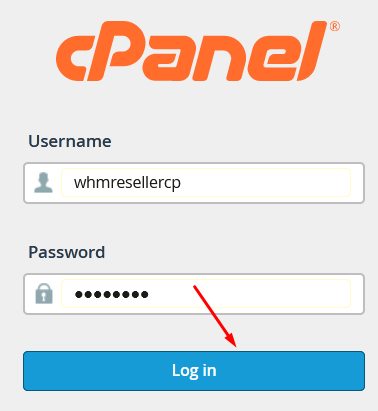
Step::1 Login to your cPanel
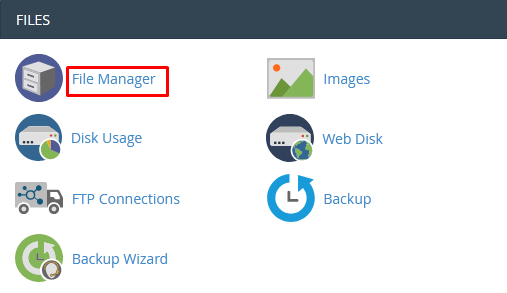
Step::2 Open the File Manager section under Files category
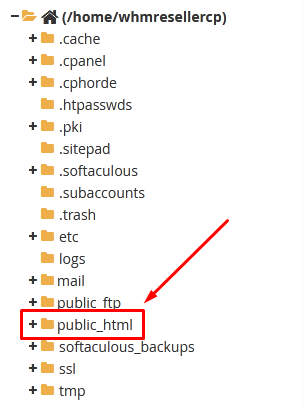
Step::3 Now go to public_html and then find your WordPress installation directory
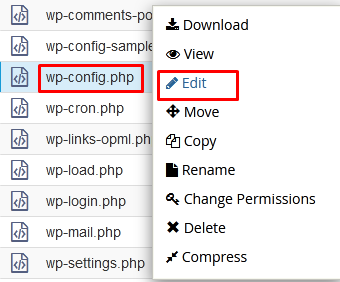
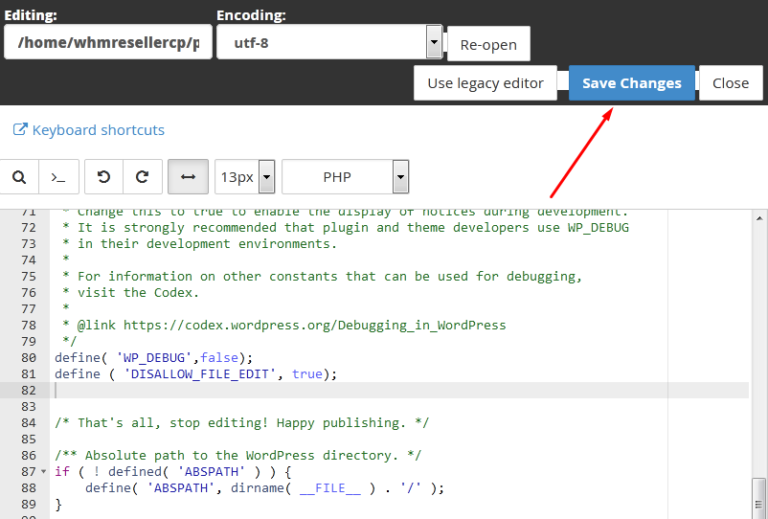
Step::4 Look for wp-config.php file and right click over the file and choose the Edit option
Step::5 Add the following code under define (‘WP_DEBUG’, false’); line

Step::6 Once you’re done with the changes, click over Save Changes
Congratulations, you have successfully disabled the WordPress editor for Themes and Plugin.
Thanks for Reading this article
The End! should you have any inquiries, we encourage you to reach out to the Vercaa Support Center without hesitation.
