

How to stop comment URLs from becoming links in WordPress? [STEP BY STEP]☑️
Today in this tutorial we will learn about how to stop comment URLS from becoming links in WordPress. So if you want to stop comment URLS from becoming links in WordPress then just follow simple steps given below.
Method 1
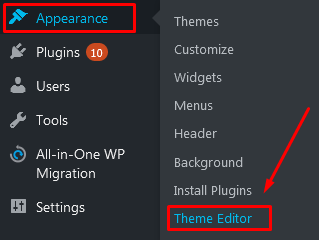
Step::1 Login to your WordPress dashboard and then go to Appearance section and select the”Theme Editor” option
Step::2 Now choose the Current theme which you are using and go to functions.php file
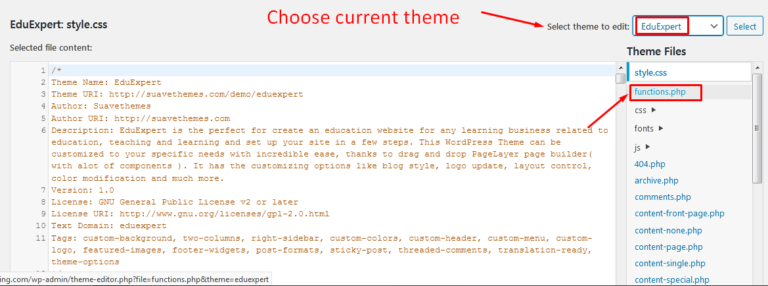
Step::3 Next you need to add the following code in functions.php file and then update the file.
remove_filter('comment_text', 'make_clickable',9);
As soon as this file gets updated you will find get all your comments will stop behaving as hyperlink.
Method 2
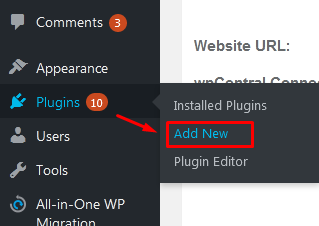
Step::1 Login to your WordPress Dashboard and then go to the Plugins section and click on Add New
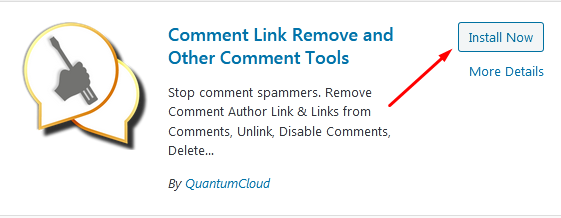
Step::2 Now Search for Comment Link Remove and Comment Tools in the available search box
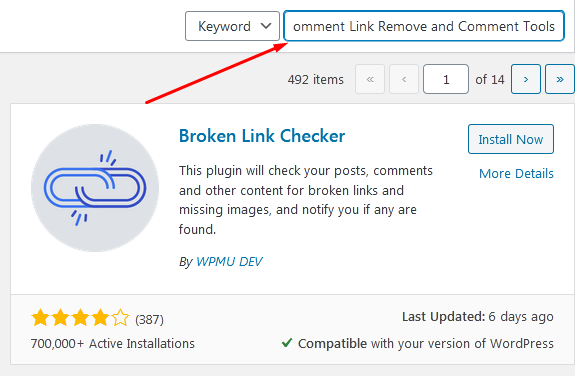
Step::3 Click on the “Install Now” button
Step::4 Next click on Activate button
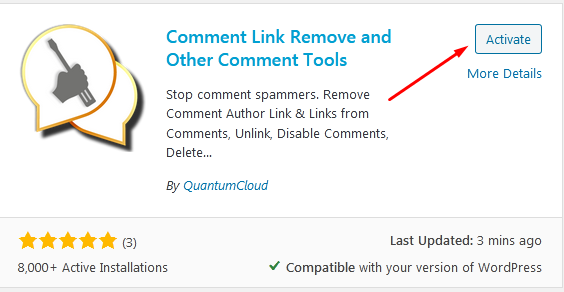
Once this plugin is successfully installed and activated you will see that all your comments will stop behaving like hyperlink.
The End! should you have any inquiries, we encourage you to reach out to the Vercaa Support Center without hesitation.
